

Many experienced professionals lose good opportunities before a recruiter even reads their background. The problem is often not experience. It is formatting choices, unsafe files, or layout decisions that confuse applicant tracking systems.
If your goal is to reduce avoidable rejection, keep one principle in mind: your CV should be easy to upload, easy to parse, and easy to read. For a broader technical foundation, start with how to make your CV ATS friendly and then apply the practical rules below.
Common CV rejection triggers and quick fixes
The most common fail patterns usually fall into three areas: format, file, and keyword handling.
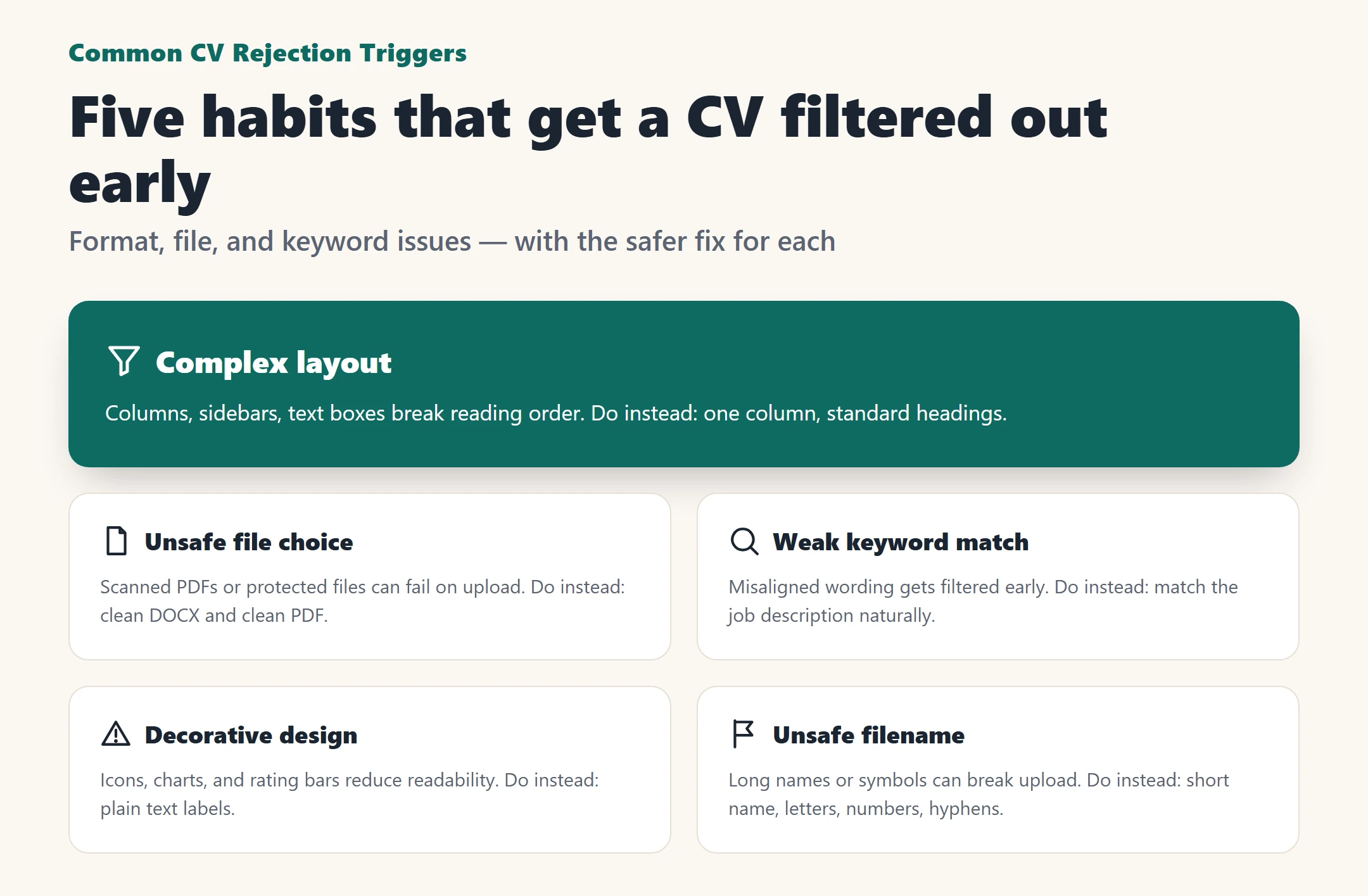
Here are the biggest triggers:
- Complex layout
Two columns, sidebars, text boxes, or floating elements can break reading order.
Do instead: use one clear column with standard section headings.
- Unsafe file choice
Scanned PDFs, unusual formats, or files with protected settings can fail during upload.
Do instead: keep a clean DOCX and a clean PDF version.
- Weak keyword match
If the job title, tools, and core skills in your CV do not align with the target role, your document may be filtered out early.
Do instead: match the wording naturally to the job description.
- Decorative design
Icons, charts, logos, and graphic rating bars often reduce machine readability.
Do instead: replace visuals with plain text labels.
- Unsafe filename
Long names, symbols, and mixed scripts can cause upload or parsing issues.
Do instead: use a short filename with letters, numbers, and hyphens only.
A useful test is simple: if a formatting choice makes the CV look better but makes the text harder to extract, it is probably the wrong choice.
Safe file names and practical version control
Your filename matters more than many candidates expect. A clean name reduces upload problems and makes the document easier to identify.
Safe filename examples:
- FirstName-LastName-CV
- FirstName-LastName-TargetRole-CV
- FirstName-LastName-CV-2025
Avoid these:
- Special characters such as
# % & * / \ - Extra dots
- Long file names
- Labels such as “finalfinal” or “latest new”
For simple version control, keep it practical:
- Omar-Alharbi-CV-Operations-Manager
- Omar-Alharbi-CV-Operations-Manager-DOCX
- Omar-Alharbi-CV-Operations-Manager-PDF
This helps when you apply to several roles and need to know exactly which version you sent.
DOCX vs PDF: which file format is safer?
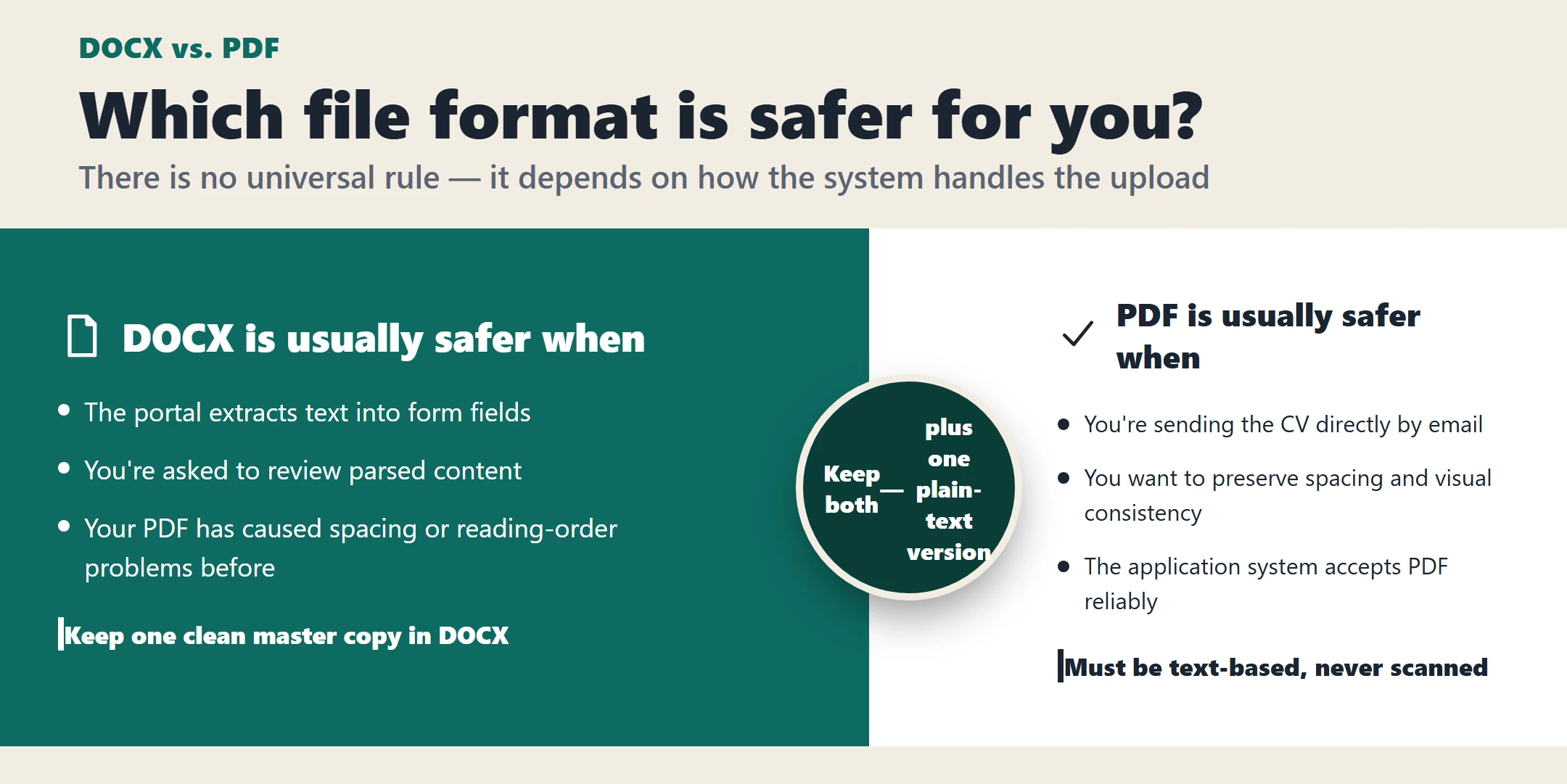
There is no universal rule for every employer or portal. In practice, both DOCX and PDF can work, but one may be safer depending on how the system handles uploads.
When DOCX is usually safer
DOCX is often the better option when:
- The portal extracts text into form fields
- The system asks you to review parsed content
- Your PDF has caused spacing or reading-order problems before
DOCX is usually easier for systems to process. Keep one clean master copy in DOCX at all times.
When PDF is usually safer
PDF can be a good choice when:
- You are sending the CV directly by email
- You want to preserve spacing and visual consistency
- The application system accepts PDF reliably
But the PDF must be text-based, not scanned. If you want context on how ATS use affects formatting choices, review ATS use in Saudi companies .
The safest approach
Keep three versions ready:
- One master DOCX
- One exported PDF
- One plain-text version for strict forms
That gives you a fallback if a portal rejects one format.
Font and encoding safety
Fonts are not only a design choice. They also affect readability, text extraction, and character display.
Use ATS-safe fonts such as:
- Arial
- Calibri
- Times New Roman
- Helvetica
- Georgia
Avoid decorative fonts, symbol fonts, and unusual typefaces. Also avoid custom icon bullets.
Safe font rules:
- Use one main font
- Keep body text readable
- Use bold for hierarchy only
- Make sure text stays selectable after export
If your CV includes both English and Arabic content, test the final file carefully. Mixed-language content can display badly after export if the font or encoding is weak.
When templates help and when custom layouts harm
Templates are not automatically good or bad. The real question is whether the template supports readable structure.
When templates help
A template can help when it gives you:
- Clear section headings
- A one-column layout
- Consistent spacing
- Normal text formatting
- Strong hierarchy without graphics
If you want a polished design that still looks professional, a corporate CV layout should feel clean and controlled, not decorative.
When templates create risk
A template becomes risky when it uses:
- Sidebars
- Skill bars
- Contact icons
- Full-page tables
- Text boxes
- Floating content blocks
Rule of thumb
If the template looks like a brochure, it is probably too complex.
If it looks like a business document, it is usually safer.
Avoid decorative formatting that breaks parsing
Decorative formatting is one of the fastest ways to damage ATS readability.
Never rely on these for important information:
- Icons instead of labels
- Text boxes for your summary
- Charts for skills
- Progress bars for language level
- Fancy separators made from symbols
Use this instead:
Email:followed by the full addressLinkedIn:followed by the visible profile URL- Skills written as text
- Standard bullet points
Plain structure may feel less impressive visually, but it is much safer in real applications.
If you want paid help to rewrite a weak CV and turn it into a cleaner, application-ready document, explore our CV services here .
Why columns, tables, and sidebars often fail
Two-column CVs are common, but they often create parsing problems. Systems may read across both columns, merge unrelated lines, or drop sidebar content.
Common issues include:
- Dates separating from job titles
- Contact details appearing in the wrong order
- Skills mixing into experience text
- Section headings disconnecting from content
Tables can also create problems when used for the full layout. A small table for minor alignment may survive, but building the whole CV around tables adds unnecessary risk.
Safe single-column replacement
Use this sequence instead:
- Name
- Contact details
- Professional summary
- Core skills
- Work experience
- Education
- Certifications
- Additional information
Use spacing and heading size for hierarchy. Do not use structural tricks to force visual design.
Header and footer risks
Many professionals put contact details in the header to save space. That may look neat, but some systems may ignore header and footer content.
Do not place these only in the header or footer:
- Mobile number
- Email address
- LinkedIn URL
- Current title
- Key credentials
The safer option is to keep all critical contact details in the main body near the top of page one. Footers should stay minimal, ideally limited to page numbers.
Why graphics, logos, and photos should be removed
Graphics can make a CV look modern, but they often create more risk than value.
Avoid:
- Company logos
- Personal photos
- Background shapes
- Watermarks
- Graphic badges
- Visual skill charts
Use text instead. Write the employer name, certification title, or skill clearly in normal text. This is especially important when the portal converts your CV into profile fields.
How to show LinkedIn, portfolio, and email links safely
Links should be visible as text, not hidden behind vague words or icons.
Safer link format:
- LinkedIn: linkedin.com/in/yourname
- Portfolio: yourportfolio.com
- Email: name@example.com
Avoid:
- “Click here”
- “My profile”
- An icon with an embedded link only
Visible text is easier for both systems and recruiters to read.
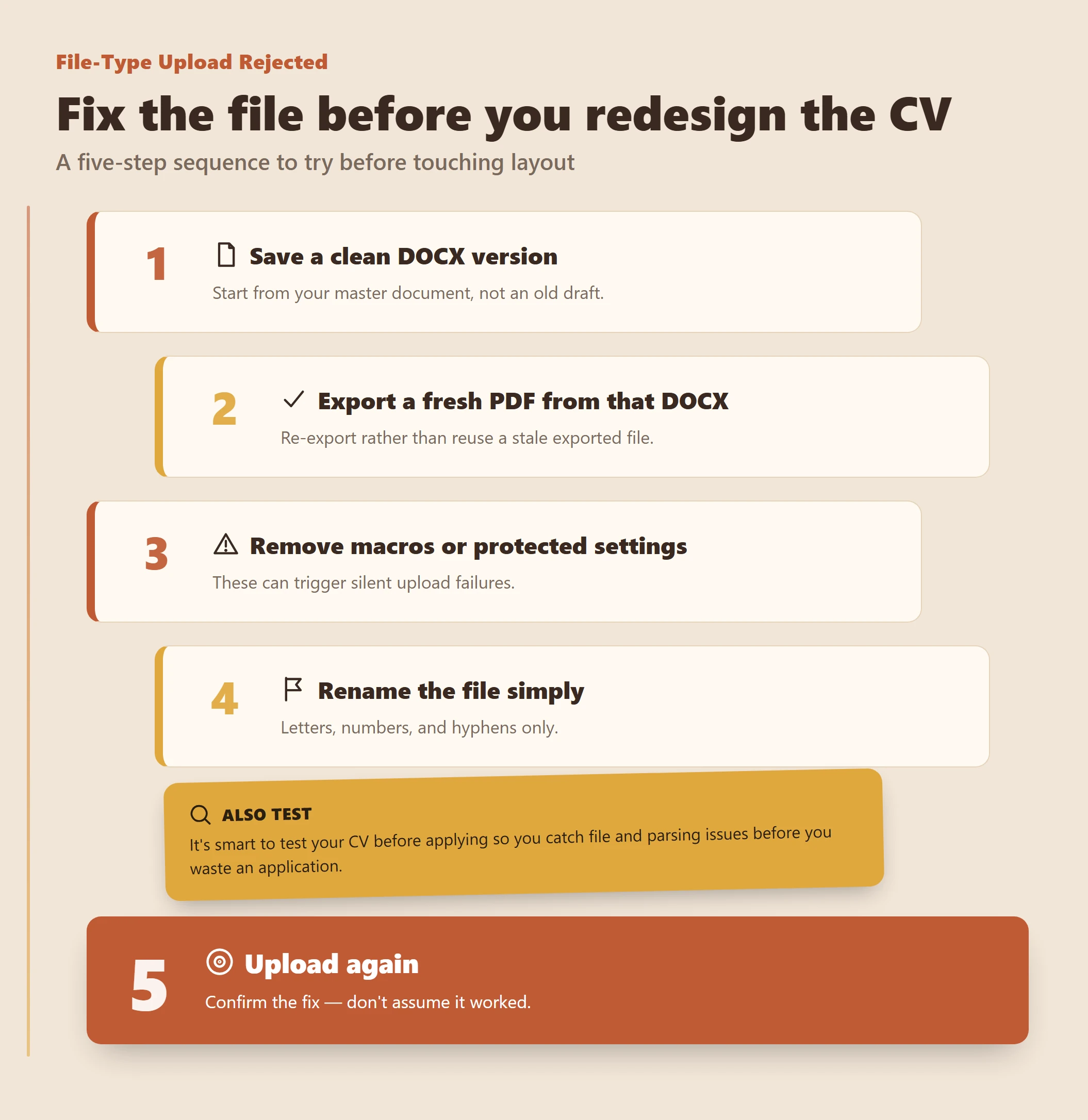
Upload rejected because the file type is not supported
If a portal rejects the file immediately, do not redesign the CV first. Start with the file itself.
Try this sequence:
- Save a clean DOCX version
- Export a fresh PDF from that DOCX
- Remove macros or protected settings
- Rename the file simply
- Upload again
It is also smart to test your CV before applying so you can catch file and parsing issues before you waste an application.
Upload rejected because the file is too large
Large CV files are usually caused by images, logos, heavy formatting, or poor export settings.
Quick fixes:
- Remove all images
- Delete logos and icons
- Simplify formatting
- Export again from the DOCX source
- Keep only the pages you need
For most experienced professionals, a text-first CV should remain reasonably light.
Upload rejected because of special characters in the filename
Some systems handle special characters badly. Even if the file opens on your device, the portal may reject it or fail to process it properly.
Use:
- Letters
- Numbers
- Hyphens
Avoid:
- Brackets
- Slashes
- Symbols
- Extra punctuation
- Very long names
For safer handling, many candidates also avoid Arabic characters in the filename itself, even when the CV content includes Arabic.
When text shows as boxes or question marks
If text appears as boxes, question marks, or broken symbols, the issue is usually font support or encoding.
Fix it fast:
- Switch to Arial or Calibri
- Remove decorative fonts
- Save again in DOCX
- Export a new PDF
- Copy and paste text from the PDF to test it
If the file includes Arabic names or mixed-language content, check every line after export.
When the PDF looks fine but parses badly
This is a common problem. A PDF can look correct to a human reader and still fail during text extraction.
Warning signs:
- Lines merge after upload
- Dates move out of place
- Headings disappear
- Bullet points become odd symbols
Safer fix:
- Return to the DOCX master
- Remove complex formatting
- Export a fresh PDF
- Check that text is selectable
- Never upload a scanned PDF
If you cannot highlight and copy the text cleanly, the system may struggle too.
When icons, logos, or hyperlinks break the text flow
If parsing fails after you used icons or logos, remove them all. Replace graphics with plain labels such as:
- Phone:
- Email:
- LinkedIn:
- Location:
The same principle applies to hyperlinks. Show the full destination as visible text instead of using embedded link-only anchors. That improves readability, parsing, and manual review.
When header or footer content goes missing
If your phone number, email, or profile link disappears after upload, check whether it was placed in the header or footer.
The fix is simple:
- Move all critical information into the main body
- Keep the top section text-based
- Use the header only for non-essential content
A cleaner top margin is not worth losing contact information.
When a two-column template collapses
When a two-column layout collapses, the reading order becomes unreliable. Side content may land inside job descriptions, and dates may detach from roles.
Rebuild it into one column using this pattern for each role:
Job Title
Company Name | City | Dates
Short scope line
- Achievement or responsibility
- Achievement or responsibility
- Achievement or responsibility
This structure is easy for both humans and systems to follow.
When Arabic names cause field errors
If a system struggles with Arabic-script names in some fields, use a practical text solution.
A safe option is:
- Latin transliteration on the main line
- Arabic in brackets if needed
Example:
- Ahmed Alqahtani (أحمد القحطاني)
Keep the format consistent across the filename, CV, and application fields where possible.
Keep a fail-safe plain-text version
A plain-text version is your fallback for strict portals, copy-paste applications, and last-minute upload problems.
It should include the same core content as your main CV:
- Name
- Contact details
- Professional summary
- Skills
- Work experience
- Education
- Certifications
Plain-text rules:
- No tables
- No icons
- No columns
- No special bullets
- Clear section headings
- Simple date formatting
Quick myths vs facts
- Myth: A more designed CV always performs better.
Fact: Readability and parsing safety usually matter more.
- Myth: If a PDF looks good, the ATS will read it well.
Fact: Visual quality and parsing quality are different things.
- Myth: Icons make contact details easier to scan.
Fact: Plain text labels are safer for systems.
- Myth: Two columns save space without downside.
Fact: They often create reading-order problems.
Final pre-upload checklist
Before you apply, check:
- Is the filename short and clean?
- Do you have both DOCX and PDF versions?
- Is the layout single-column?
- Are links visible as text?
- Is critical information in the main body?
- Are fonts standard and readable?
- Can you copy text cleanly from the file?
- Are graphics, logos, and icons removed?
- Is page one carrying the strongest information?
- Do the keywords match the target role naturally?
If you want a professionally rewritten, ATS-safer CV for experienced professionals, with clearer formatting and stronger application readiness, order our CV service here .